<?xml version="1.0" encoding="utf-8"?><feed xmlns="http://www.w3.org/2005/Atom" ><generator uri="https://jekyllrb.com/" version="3.10.0">Jekyll</generator><link href="https://ml-cfd.com/feed.xml" rel="self" type="application/atom+xml" /><link href="https://ml-cfd.com/" rel="alternate" type="text/html" /><updated>2026-03-16T20:50:22+00:00</updated><id>https://ml-cfd.com/feed.xml</id><title type="html">ML-CFD</title><subtitle>Blog about machine learning and computational fluid dynamics</subtitle><entry><title type="html">Minimizing the size of Docker images using multi-stage builds</title><link href="https://ml-cfd.com/openfoam/docker/2020/12/29/minimizing-docker-images.html" rel="alternate" type="text/html" title="Minimizing the size of Docker images using multi-stage builds" /><published>2020-12-29T11:00:00+00:00</published><updated>2020-12-29T11:00:00+00:00</updated><id>https://ml-cfd.com/openfoam/docker/2020/12/29/minimizing-docker-images</id><content type="html" xml:base="https://ml-cfd.com/openfoam/docker/2020/12/29/minimizing-docker-images.html"><![CDATA[<p><strong>Update (Mar 6 2022)</strong>: there are now different official <a href="https://develop.openfoam.com/Development/openfoam/-/wikis/precompiled/docker">OpenFOAM images</a> available, which are tailored to development or application. The images are also build in multiple stages and have increasing features/size with each stage.</p>

<hr />

<ol>
  <li>A multi-stage build version of hello world</li>
  <li>Single-stage build of dummyFoam</li>
  <li>Analyzing library dependencies</li>
  <li>Multi-stage build of dummyFoam</li>
  <li>Summary</li>
</ol>

<p>When compiling a new high-level application or utility that will be shipped as a container, ideally, you want to start from a base image that comes as close as possible to the build-environment you need to compile your application. For example, if you’re going to create and build a custom OpenFOAM® solver, it makes perfect sense to start with the <a href="https://develop.openfoam.com/Development/openfoam/-/wikis/precompiled/docker">OpenFOAM Docker image</a> as a base. You may install additional third-party libraries, copy your sources to the image, and compile. This workflow is really convenient since it allows, for example, to compile your application against a variety of OpenFOAM versions or flavors at lighting speed while keeping all dependencies nicely separated. One disadvantage, however, is the quickly increasing storage demand since every newly created image contains both the build-environment and the application. Moreover, sending the image over the network will take longer and cause significantly more traffic. Of course, there is an established way to overcome these disadvantages called <strong>multi-stage builds</strong>, and this article tells you how to apply it to OpenFOAM applications.</p>

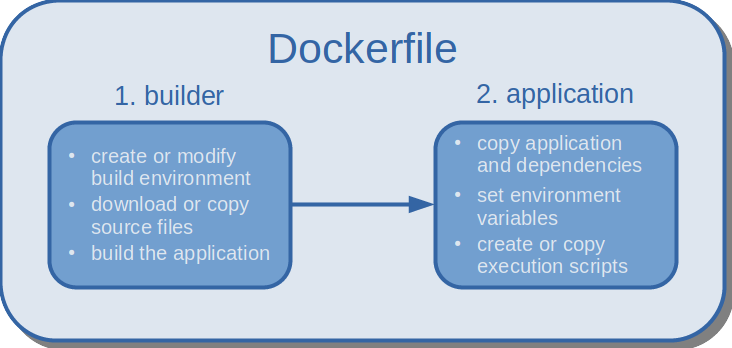
<p>The idea behind multi-stage builds is simple: first, you prepare one or more build-environments with all dependencies (typically called builder(s)), then you build your application, and finally, you extract only what is really needed from the builder and discard the rest. The simplest multi-stage build is a two-stage build as depicted in the image below. However, you could also merge applications from multiple different builders into one final image, or you could combine different builders to create a new builder. The first scenario may be relevant to merge several binaries needed to run a simulation into a single image (e. g. third-party meshing tool + custom OpenFOAM solver + third-party post-processing tool). The latter scenario may occur if OpenFOAM is combined with another custom library to build the final app. In the early days of Docker, users would define individual Dockerfiles for each step in the build process, and write wrapper scripts to execute them in order. Since the introduction of <a href="https://docs.docker.com/develop/develop-images/multistage-build/">multi-stage builds</a>, Docker handles the execution and copy processes for the user, and the entire build can be defined in a single Dockerfile.</p>

<table>
  <thead>
    <tr>
      <th style="text-align: center"><img src="/assets/img/multi_stage_docker.png" alt="" /></th>
    </tr>
  </thead>
  <tbody>
    <tr>
      <td style="text-align: center"><em>Multi-stage build with two stages: in the first stage, the environment is set up and the application is compiled; in the second stage, the compiled application and its dependencies are isolated.</em></td>
    </tr>
  </tbody>
</table>

<h3 id="a-multi-stage-build-version-of-hello-world">A multi-stage build version of <em>hello world</em></h3>

<p>Let’s start with the probably simplest app we can build in a multi-stage process as outlined before: <code class="language-plaintext highlighter-rouge">hello_world.cpp</code>. If you want to follow along:</p>

<ol>
  <li><code class="language-plaintext highlighter-rouge">mkdir hello_world</code></li>
  <li><code class="language-plaintext highlighter-rouge">cd hello_world</code></li>
  <li><code class="language-plaintext highlighter-rouge">touch hello_world.cpp</code></li>
  <li>copy &amp; paste the source code from the box below into <code class="language-plaintext highlighter-rouge">hello_world.cpp</code></li>
</ol>

<div class="language-cpp highlighter-rouge"><div class="highlight"><pre class="highlight"><code><span class="cp">#include</span> <span class="cpf">&lt;iostream&gt;</span><span class="cp">
</span><span class="k">using</span> <span class="n">std</span><span class="o">::</span><span class="n">cout</span><span class="p">;</span>

<span class="kt">int</span> <span class="nf">main</span><span class="p">(){</span>
    <span class="n">cout</span> <span class="o">&lt;&lt;</span> <span class="s">"Hello World - multi-stage edition</span><span class="se">\n</span><span class="s">"</span><span class="p">;</span>
    <span class="k">return</span> <span class="mi">0</span><span class="p">;</span>
<span class="p">}</span>
</code></pre></div></div>

<p>To build the app, we start with the official Ubuntu 18.04 Docker image, update the list of available software packages, and install a C++ compiler. Note that the ~120MB Docker image of Ubuntu is not comparable to the richly packaged desktop version you may use on your workstation, so you’ll probably have to install more dependencies than you’re used to. The actual compile command to build the program follows in line 5. Compiling the app concludes the first stage.</p>

<p>In the second stage, we start with an empty Docker image (basically <code class="language-plaintext highlighter-rouge">FROM</code> scratch) and copy only the binary called hello from the first stage over to the final image. The possibility to name different stages makes it easy to write comprehensible Dockerfiles. In the example below, our base image is simply called builder. This name is then used in the second stage to run the <code class="language-plaintext highlighter-rouge">COPY</code> command. By default, the <code class="language-plaintext highlighter-rouge">hello</code> program is executed whenever we run a container.</p>

<div class="language-docker highlighter-rouge"><div class="highlight"><pre class="highlight"><code><span class="c"># first stage</span>
<span class="k">FROM</span><span class="w"> </span><span class="s">ubuntu:18.04</span><span class="w"> </span><span class="k">AS</span><span class="w"> </span><span class="s">builder</span>
<span class="k">RUN </span>apt-get update <span class="o">&amp;&amp;</span> apt-get <span class="nb">install</span> <span class="nt">-y</span> g++
<span class="k">COPY</span><span class="s"> hello_world.cpp /</span>
<span class="k">RUN </span>g++ <span class="nt">-static</span> <span class="nt">-o</span> hello hello_world.cpp

<span class="c"># second stage</span>
<span class="k">FROM</span><span class="s"> scratch</span>
<span class="k">COPY</span><span class="s"> --from=builder hello /</span>
<span class="k">CMD</span><span class="s"> ["/hello"]</span>
</code></pre></div></div>

<p>To build and run the hello world multi-stage version,</p>

<ol>
  <li>create a new Dockerfile <code class="language-plaintext highlighter-rouge">touch Dockerfile</code>,</li>
  <li>copy &amp; paste the content of the code box above into the Dockerfile, and</li>
  <li>execute the Docker commands provided in the code box below.</li>
</ol>

<div class="language-bash highlighter-rouge"><div class="highlight"><pre class="highlight"><code>docker build <span class="nt">-t</span> hello_world:multi_stage <span class="nb">.</span>
docker run hello_world:multi_stage
<span class="c"># output ...</span>
Hello World - multi-stage edition
</code></pre></div></div>

<p>I hope you’ll agree at this point that Docker multi-stage builds enable us to create streamlined build processes. The same overall two-step structure can be applied to build OpenFOAM apps, too. However, there are some technicalities that require a couple of intermediate steps to create a runnable and isolated binary. Therefore, we’ll first take a look at how dummyFoam is built in a single-stage process.</p>

<h3 id="single-stage-build-of-dummyfoam">Single-stage build of <em>dummyFoam</em></h3>

<p><code class="language-plaintext highlighter-rouge">dummyFoam</code> consists only of the basic app structure that the <code class="language-plaintext highlighter-rouge">foamNewApp</code> utility creates. The app does nothing more than setting up a root-case and creating a (run)time object. In case you want to follow along, I have set up two Github repositories to make your life easier:</p>

<div class="language-bash highlighter-rouge"><div class="highlight"><pre class="highlight"><code>git clone https://github.com/AndreWeiner/of_app_isolation.git
<span class="nb">cd </span>of_app_isolation
git clone https://github.com/AndreWeiner/dummyFoam.git
</code></pre></div></div>

<p>With the commands above, we have downloaded one repository into another. The commands issued later on require precisely this folder structure. The first repository contains the Dockerfiles for single and multi-stage builds. The second one comprises a version-controlled form of dummyFoam. Let’s now have a look at the single-stage build.</p>

<div class="language-docker highlighter-rouge"><div class="highlight"><pre class="highlight"><code><span class="k">FROM</span><span class="s"> openfoamplus/of_v1912_centos73</span>
<span class="c"># copy app source code to base image</span>
<span class="k">COPY</span><span class="s"> dummyFoam /opt/OpenFOAM/OpenFOAM-v1912/applications/solvers/dummyFoam</span>
<span class="c"># change working directory</span>
<span class="k">WORKDIR</span><span class="s"> /opt/OpenFOAM/OpenFOAM-v1912/applications/solvers/dummyFoam</span>
<span class="c"># source environment variables, compile, and create execution script</span>
<span class="k">RUN </span><span class="nb">source</span> /opt/OpenFOAM/OpenFOAM-v1912/etc/bashrc <span class="o">&amp;&amp;</span> <span class="se">\
</span>    wmake <span class="o">&amp;&amp;</span> <span class="se">\
</span>    <span class="nb">mkdir</span> /case <span class="o">&amp;&amp;</span> <span class="se">\
</span>    <span class="nb">echo</span> <span class="s2">"source /opt/OpenFOAM/OpenFOAM-v1912/etc/bashrc &amp;&gt; /dev/null; dummyFoam -case /case"</span> <span class="o">&gt;</span> /runDummyFoam.sh
</code></pre></div></div>

<p>We start with version 1912 of the OpenFOAM-plus release as a base image. The image comes with all dependencies needed to build <code class="language-plaintext highlighter-rouge">dummyFoam</code>. Next, we copy the app sources to the image and make the app folder our work-directory. The <code class="language-plaintext highlighter-rouge">RUN</code> command sources the OpenFOAM environment variables, builds the app using <code class="language-plaintext highlighter-rouge">wmake</code>, and creates a new folder in the root directory. The case folder serves as a mount point to attach simulation cases.</p>

<p>Commands to build the dummyFoam image and to create a container are provided in the code box below. We use the latest commit on the master branch of the <code class="language-plaintext highlighter-rouge">dummyFoam</code> repository (the default state after cloning the repository). One could also checkout another branch before copying the sources and building the image. To track the branch/commit used, it is good practice to tag the image with the commit hash (or at least a unique portion of it).</p>

<div class="language-bash highlighter-rouge"><div class="highlight"><pre class="highlight"><code><span class="c"># build the image</span>
docker build <span class="nt">-t</span> andreweiner/dummy_foam:<span class="si">$(</span>git <span class="nt">--git-dir</span> dummyFoam/.git log <span class="nt">-1</span> <span class="nt">--format</span><span class="o">=</span>%h<span class="si">)</span> <span class="nt">-f</span> Dockerfile.single <span class="nb">.</span>
<span class="c"># create a container</span>
docker container run <span class="nt">-it</span> andreweiner/dummy_foam_single:06ff344 /bin/bash
<span class="c"># now we are inside the container</span>
<span class="c"># let's see where the dummyFoam binary file is located</span>
which dummyFoam
<span class="c"># output ...</span>
/root/OpenFOAM/-v1912/platforms/linux64GccDPInt32Opt/bin/dummyFoam
</code></pre></div></div>

<p>With the latter two commands in the code box above, we can see where in the image the <code class="language-plaintext highlighter-rouge">dummyFoam</code> binary is located. However, this time it is not as easy as copying the binary over to the second stage. A little twist I didn’t comment on earlier in the <code class="language-plaintext highlighter-rouge">hello_world.cpp</code> example is the flag <code class="language-plaintext highlighter-rouge">-static</code>. Even though the hello world program is relatively simple, it already has quite some dependencies on other libraries. An obvious example is <code class="language-plaintext highlighter-rouge">iostream</code> from the C++ standard library. But the standard library links against other C libraries which will be therefore also needed in the hello program. If one of these dependencies is missing in the second stage, the linker (a tool provided by the operating system to handle library dependencies) will complain and crash as soon as we try to execute the binary. So why did it work in the first example? The answer is that the flag <code class="language-plaintext highlighter-rouge">-static</code> tells the compiler to create a static version of the program. A static program is one that does not dynamically load any other libraries at runtime. In other words, the compiler packages all the dependencies into a single executable binary file. The reason why not every program is compiled statically is the subsequent massive redundancy of binary code. Each and every C++ program, for example, would very likely contain the entire C++ standard library.</p>

<p>Coming back to the compilation of <code class="language-plaintext highlighter-rouge">dummyFoam</code>, unfortunately, it is not as easy as adding a flag to the <code class="language-plaintext highlighter-rouge">wmake</code> options. We would have to tinker around with the base image, and presumably create a new one. Here, we follow another path. In theory, we just have to find all the libraries dummyFoam loads at runtime and copy them over to the second stage together with the <code class="language-plaintext highlighter-rouge">dummyFoam</code> binary itself. This workflow may sound cumbersome, but, luckily, it can be automated to a large extent as you’ll see in the next section.</p>

<h3 id="analyzing-library-dependencies">Analyzing library dependencies</h3>

<p><a href="http://man7.org/linux/man-pages/man1/ldd.1.html">ldd</a> is a tool that invokes the (dynamic) linker and allows us to trace dynamic library dependencies. The output of <code class="language-plaintext highlighter-rouge">ldd</code> is formatted as <code class="language-plaintext highlighter-rouge">shared_library.so =&gt; /path/to/shared_library.so (address in memory)</code> (<a href="https://stackoverflow.com/questions/34428037/how-to-interpret-the-output-of-the-ldd-program">learn more</a>). <code class="language-plaintext highlighter-rouge">dummyFoam</code> loads several OpenFOAM-specific and some system libraries, as can be seen in the code box below. Note that you have to be inside the container created after the single-stage build to invoke to command in line 1 of the code box.</p>

<div class="language-bash highlighter-rouge"><div class="highlight"><pre class="highlight"><code>ldd <span class="si">$(</span>which dummyFoam<span class="si">)</span>
<span class="c"># output ...</span>
linux-vdso.so.1 <span class="o">=&gt;</span>  <span class="o">(</span>0x00007fff811f7000<span class="o">)</span>
libfiniteVolume.so <span class="o">=&gt;</span> /opt/OpenFOAM/OpenFOAM-v1912/platforms/linux64GccDPInt32Opt/lib/libfiniteVolume.so <span class="o">(</span>0x00007f1220154000<span class="o">)</span>
libmeshTools.so <span class="o">=&gt;</span> /opt/OpenFOAM/OpenFOAM-v1912/platforms/linux64GccDPInt32Opt/lib/libmeshTools.so <span class="o">(</span>0x00007f121f930000<span class="o">)</span>
libOpenFOAM.so <span class="o">=&gt;</span> /opt/OpenFOAM/OpenFOAM-v1912/platforms/linux64GccDPInt32Opt/lib/libOpenFOAM.so <span class="o">(</span>0x00007f121ecc1000<span class="o">)</span>
libdl.so.2 <span class="o">=&gt;</span> /lib64/libdl.so.2 <span class="o">(</span>0x00007f121eabd000<span class="o">)</span>
libstdc++.so.6 <span class="o">=&gt;</span> /lib64/libstdc++.so.6 <span class="o">(</span>0x00007f121e7b4000<span class="o">)</span>
...
</code></pre></div></div>

<p>What we actually need from the <code class="language-plaintext highlighter-rouge">ldd</code>-output are the paths to all shared object libraries (<code class="language-plaintext highlighter-rouge">*.so</code> files). To extract the path from each line, we pipe the output to <code class="language-plaintext highlighter-rouge">cut</code>, split the line at every whitespace, and keep only the third element/field. The output of cut can be piped again to <code class="language-plaintext highlighter-rouge">xargs</code>, which converts the line-wise output of <code class="language-plaintext highlighter-rouge">cut</code> into a single line containing all paths (basically, an argument list that can be used by yet another program).</p>

<div class="language-bash highlighter-rouge"><div class="highlight"><pre class="highlight"><code>ldd <span class="si">$(</span>which dummyFoam<span class="si">)</span> | <span class="nb">cut</span> <span class="nt">-d</span><span class="s2">" "</span> <span class="nt">-f3</span>
<span class="c"># output ...</span>
/opt/OpenFOAM/OpenFOAM-v1912/platforms/linux64GccDPInt32Opt/lib/libfiniteVolume.so
/opt/OpenFOAM/OpenFOAM-v1912/platforms/linux64GccDPInt32Opt/lib/libmeshTools.so
/opt/OpenFOAM/OpenFOAM-v1912/platforms/linux64GccDPInt32Opt/lib/libOpenFOAM.so
/lib64/libdl.so.2
/lib64/libstdc++.so.6
...
ldd <span class="si">$(</span>which dummyFoam<span class="si">)</span> | <span class="nb">cut</span> <span class="nt">-d</span><span class="s2">" "</span> <span class="nt">-f3</span> | xargs
<span class="c"># output ...</span>
/opt/OpenFOAM/OpenFOAM-v1912/platforms/linux64GccDPInt32Opt/lib/libfiniteVolume.so /opt/OpenFOAM/OpenFOAM-v1912/platforms/linux64GccDPInt32Opt/lib/libmeshTools.so /opt/OpenFOAM/OpenFOAM-v1912/platforms/linux64GccDPInt32Opt/lib/libOpenFOAM.so /lib64/libdl.so.2 /lib64/libstdc++.so.6 ...
</code></pre></div></div>

<p>Did this single-line command seem too easy to work? It sometimes is because there is another stumbling block you may encounter. Many operating systems, like Ubuntu, allow having multiple versions of the same library. To manage these dependencies internally, there is usually a symbolic link pointing to the default version of the library. One example in the case of dummyFoam is the C++ standard library. If we inspect the path returned by ldd using <code class="language-plaintext highlighter-rouge">ls -al</code>, we find that <code class="language-plaintext highlighter-rouge">/lib64/libstdc++.so.6</code> is actually pointing to the specific version <code class="language-plaintext highlighter-rouge">libstdc++.so.6.0.19</code> in the same directory. The tracing of <code class="language-plaintext highlighter-rouge">ldd</code> does not follow symbolic links, so we have to keep that in mind when copying the library files. You’ll read in the next section to overcome this issue.</p>

<div class="language-bash highlighter-rouge"><div class="highlight"><pre class="highlight"><code><span class="nb">ls</span> <span class="nt">-al</span> /lib64/libstdc++.so.6
<span class="c"># output ...</span>
lrwxrwxrwx 1 root root 19 Jun  5  2017 /lib64/libstdc++.so.6 -&gt; libstdc++.so.6.0.19
</code></pre></div></div>

<h3 id="multi-stage-build-of-dummyfoam">Multi-stage build of <em>dummyFoam</em></h3>

<p>Finally, we are ready for the multi-stage build of <code class="language-plaintext highlighter-rouge">dummyFoam</code>! In the builder stage, we package the libraries required by <code class="language-plaintext highlighter-rouge">dummyFoam</code> into a tar-archive. In the <code class="language-plaintext highlighter-rouge">tar</code> command, it is essential to add the <code class="language-plaintext highlighter-rouge">--dereference</code> flag. This option tells <code class="language-plaintext highlighter-rouge">tar</code> to follow symbolic links and to archive the actual file and not the link pointing to it. In the last step of the first stage, another file not captured by the <code class="language-plaintext highlighter-rouge">cut</code> command is added to the archive, and a second archive containing OpenFOAM configuration files is created.</p>

<div class="language-docker highlighter-rouge"><div class="highlight"><pre class="highlight"><code><span class="c"># step 1: build application using base image with build environment</span>
<span class="k">FROM</span><span class="w"> </span><span class="s">openfoamplus/of_v1912_centos73</span><span class="w"> </span><span class="k">AS</span><span class="w"> </span><span class="s">builder</span>
<span class="k">COPY</span><span class="s"> dummyFoam /opt/OpenFOAM/OpenFOAM-v1912/applications/solvers/dummyFoam</span>
<span class="k">WORKDIR</span><span class="s"> /opt/OpenFOAM/OpenFOAM-v1912/applications/solvers/dummyFoam</span>
<span class="k">RUN </span><span class="nb">source</span> /opt/OpenFOAM/OpenFOAM-v1912/etc/bashrc <span class="o">&amp;&amp;</span> <span class="se">\
</span>    wmake <span class="o">&amp;&amp;</span> <span class="se">\
</span>    ldd <span class="si">$(</span>which dummyFoam<span class="si">)</span> | <span class="nb">cut</span> <span class="nt">-d</span><span class="s2">" "</span> <span class="nt">-f3</span> | xargs <span class="nb">tar</span> <span class="nt">--dereference</span> <span class="nt">-cf</span> libs.tar <span class="o">&amp;&amp;</span> <span class="se">\
</span>    <span class="nb">tar</span> <span class="nt">--dereference</span> <span class="nt">-rvf</span> libs.tar /lib64/ld-linux-x86-64.so.2 <span class="o">&amp;&amp;</span> <span class="se">\
</span>    <span class="nb">tar</span> <span class="nt">-cf</span> etc.tar /opt/OpenFOAM/OpenFOAM-v1912/etc
</code></pre></div></div>

<p>The base image for the second stage is Alpine, a minimalistic operating system specifically designed for Docker images. Alpine has a package manager and enables us to install basic command-line tools like <code class="language-plaintext highlighter-rouge">bash</code> and <code class="language-plaintext highlighter-rouge">tar</code>. Next, we copy the <code class="language-plaintext highlighter-rouge">dummyFoam</code> binary, the required dynamic libraries, and the configuration files from the builder and extract the archives. Note that the absolute paths of all files will be the same in the second stage. The remainder of the Dockerfile configures environment variables and creates an execution script that runs <code class="language-plaintext highlighter-rouge">dummyFoam</code> in the <code class="language-plaintext highlighter-rouge">/case</code> folder (similar to the single-stage build).</p>

<div class="language-docker highlighter-rouge"><div class="highlight"><pre class="highlight"><code><span class="c"># step 2: isolate application and dependencies</span>
<span class="k">FROM</span><span class="s"> alpine:latest</span>
<span class="k">RUN </span>apk add <span class="nt">--no-cache</span> bash <span class="nb">tar</span>
<span class="k">COPY</span><span class="s"> --from=builder /opt/OpenFOAM/OpenFOAM-v1912/applications/solvers/dummyFoam/libs.tar \</span>
                    /root/OpenFOAM/-v1912/platforms/linux64GccDPInt32Opt/bin/dummyFoam \
                    /opt/OpenFOAM/OpenFOAM-v1912/applications/solvers/dummyFoam/etc.tar \
                    /
<span class="k">RUN </span><span class="nb">tar</span> <span class="nt">-xf</span> libs.tar <span class="o">&amp;&amp;</span> <span class="se">\
</span>    <span class="nb">tar</span> <span class="nt">-xf</span> etc.tar <span class="o">&amp;&amp;</span> <span class="se">\
</span>    <span class="nb">rm</span> <span class="k">*</span>.tar <span class="o">&amp;&amp;</span> <span class="se">\
</span>    <span class="nb">sed</span> <span class="nt">-i</span> <span class="s1">'/projectDir=\"\$HOME\/OpenFOAM\/OpenFOAM-\$WM_PROJECT_VERSION\"/c\projectDir=\"\/opt\/OpenFOAM\/OpenFOAM-\$WM_PROJECT_VERSION\"'</span> /opt/OpenFOAM/OpenFOAM-v1912/etc/bashrc <span class="o">&amp;&amp;</span> <span class="se">\
</span>    <span class="nb">mkdir </span><span class="k">case</span> <span class="o">&amp;&amp;</span> <span class="se">\
</span>    <span class="nb">echo</span> <span class="s2">"source /opt/OpenFOAM/OpenFOAM-v1912/etc/bashrc &amp;&gt; /dev/null; /dummyFoam -case /case"</span> <span class="o">&gt;</span> runDummyFoam.sh
<span class="k">ENV</span><span class="s"> LD_LIBRARY_PATH=\</span>
lib:\
lib64:\
/opt/OpenFOAM/OpenFOAM-v1912/platforms/linux64GccDPInt32Opt/lib:\
/opt/OpenFOAM/ThirdParty-v1912/platforms/linux64Gcc/openmpi-1.10.4/lib64/lib:\
/opt/OpenFOAM/OpenFOAM-v1912/platforms/linux64GccDPInt32Opt/lib/openmpi-1.10.4:\
/opt/OpenFOAM/ThirdParty-v1912/platforms/linux64Gcc/openmpi-1.10.4/lib64
</code></pre></div></div>

<p>To perform the multi-stage build, run <code class="language-plaintext highlighter-rouge">docker build -t andreweiner/dummy_foam:$(git --git-dir dummyFoam/.git log -1 --format=%h)</code>. If the image build succeeds, you should be presented with a teeny-tiny but executable version of the custom solver. You can test the image as follows:</p>

<ol>
  <li>on the host, <code class="language-plaintext highlighter-rouge">cd</code> into any valid OpenFOAM test case; if you have a local installation, you may run <code class="language-plaintext highlighter-rouge">cd $FOAM_TUTORIALS/basic/laplacianFoam/flange/</code></li>
  <li>run <code class="language-plaintext highlighter-rouge">dummyFoam</code> in the test case using <code class="language-plaintext highlighter-rouge">docker container run -it -v"$PWD:/case" andreweiner/dummy_foam:06ff344 /bin/bash /runDummyFoam.sh &gt; log.dummyFoam</code></li>
</ol>

<p>The solver output in the log-file should look as follows:</p>

<div class="language-bash highlighter-rouge"><div class="highlight"><pre class="highlight"><code>...
Create <span class="nb">time


</span>ExecutionTime <span class="o">=</span> 0 s  ClockTime <span class="o">=</span> 0 s

End
</code></pre></div></div>

<h3 id="summary">Summary</h3>

<p>To conclude this somewhat lengthy post, let’s see how much space we actually gained thanks to the multi-stage build. To get the precise image size in bytes, run <code class="language-plaintext highlighter-rouge">docker image inspect IMAGE_ID --format=''</code>. When sending an image over the network, e. g. to Dockerhub, the image is typically compressed using <code class="language-plaintext highlighter-rouge">gzip</code>. So, the important numbers are the size of the image on our system and the size of the compressed archive. To save the single and multi-stage build outcomes as compressed archives, check out the code box below.</p>

<div class="language-bash highlighter-rouge"><div class="highlight"><pre class="highlight"><code><span class="c">## OpenFOAM base image</span>
docker save openfoamplus/of_v1912_centos73:latest | <span class="nb">gzip</span> <span class="o">&gt;</span> of_base.tar.gz
<span class="nb">du</span> <span class="nt">-h</span> of_base.tar.gz
<span class="c"># output ...</span>
653M    of_base.tar.gz
<span class="c">## isolated dummyFoam app</span>
docker save andreweiner/dummy_foam:06ff344 | <span class="nb">gzip</span> <span class="o">&gt;</span> dummy_foam.tar.gz
<span class="nb">du</span> <span class="nt">-h</span> dummy_foam.tar.gz
<span class="c"># output ...</span>
42M    dummy_foam.tar.gz
</code></pre></div></div>

<p>The table below displays the final numbers. The difference between the base image and the result of the single-stage build is less than 1 MB. The multi-stage build yields an image that is about <strong>15 times</strong> smaller than the one resulting in the single-stage build. Another interesting idea is that adding more apps to the multi-stage build would presumably lead to a marginal increase of the final image size since other apps access mostly the same shared objects libraries as dummyFoam does.</p>

<table>
  <thead>
    <tr>
      <th style="text-align: center">version</th>
      <th style="text-align: right">image size</th>
      <th style="text-align: right">compressed</th>
    </tr>
  </thead>
  <tbody>
    <tr>
      <td style="text-align: center">OpenFOAM-v1912</td>
      <td style="text-align: right">2481 MB</td>
      <td style="text-align: right">653 MB</td>
    </tr>
    <tr>
      <td style="text-align: center">dummyFoam + OpenFOAM-v1912</td>
      <td style="text-align: right">2481 MB</td>
      <td style="text-align: right">653 MB</td>
    </tr>
    <tr>
      <td style="text-align: center">dummyFoam</td>
      <td style="text-align: right">160 MB</td>
      <td style="text-align: right">42 MB</td>
    </tr>
  </tbody>
</table>

<p>I hope you found some useful code snippets or ideas while reading the post.</p>

<p>Cheers, Andre</p>]]></content><author><name></name></author><category term="OpenFOAM" /><category term="Docker" /><summary type="html"><![CDATA[Update (Mar 6 2022): there are now different official OpenFOAM images available, which are tailored to development or application. The images are also build in multiple stages and have increasing features/size with each stage.]]></summary></entry><entry><title type="html">Running PyTorch models in OpenFOAM - basic setup and examples</title><link href="https://ml-cfd.com/openfoam/pytorch/docker/2020/12/29/running-pytorch-models-in-openfoam.html" rel="alternate" type="text/html" title="Running PyTorch models in OpenFOAM - basic setup and examples" /><published>2020-12-29T11:00:00+00:00</published><updated>2020-12-29T11:00:00+00:00</updated><id>https://ml-cfd.com/openfoam/pytorch/docker/2020/12/29/running-pytorch-models-in-openfoam</id><content type="html" xml:base="https://ml-cfd.com/openfoam/pytorch/docker/2020/12/29/running-pytorch-models-in-openfoam.html"><![CDATA[<ol>
  <li>Why PyTorch</li>
  <li>Docker image with OpenFOAM and PyTorch</li>
  <li>Local installation of LibTorch</li>
  <li>Setting up Visual Studio Code</li>
  <li>Compiling examples using wmake and CMake</li>
  <li>Additional links to resources</li>
  <li>Summary</li>
</ol>

<p>Incorporating data-driven workflows in computational fluid dynamics (CFD) is currently a hot topic, and it will undoubtedly gain even more traction over the months and years to come. The main idea is to use available datasets to make simulation-based workflows faster or more accurate. In the field of machine learning (ML) applied to CFD, deep learning (DL) algorithms allow us to tackle high-dimensional problems more effectively and promise significant progress in fields like turbulence modeling, flow control, or shape optimization. If you found your way to this article, chances are high that you don’t need to be convinced of the potential of ML/DL + CFD. So let’s skip the prose and get started with the nitty-gritty of this article: <strong>how to set up PyTorch to run DL models in OpenFOAM apps</strong>.</p>

<h3 id="why-pytorch">Why PyTorch</h3>

<p>Why should you consider using PyTorch instead of Tensorflow/Keras? The short answer is because <strong>PyTorch is easy and fast</strong>. Both PyTorch and Tensorflow provide C++ and Python frontend APIs. However, at the time of writing, my arguments in favor of PyTorch when it comes to incorporating DL models in OpenFOAM are:</p>

<ul>
  <li>it is easy to set up the C++ libraries because there are pre-compiled packages (<a href="https://pytorch.org/cppdocs/installing.html">libtorch</a>)</li>
  <li>it is easy to move data and models between the Python and C++ interface thanks to <a href="https://pytorch.org/docs/stable/jit.html">TorchScript</a></li>
  <li>the C++ API is closely aligned with its Python counterpart; once you know how to do something in one frontend, you have at least an idea what to look for in the other frontend</li>
</ul>

<p>Of course, these arguments only capture my current impression, and DL frameworks are improving at lightning speed. If you had a different experience with Tensorflow or PyTorch, let me know! I would love to see workflows that make it as easy as possible for users and developers to switch between both frameworks according to their needs.</p>

<h3 id="docker-image-with-openfoam-and-pytorch">Docker image with OpenFOAM and PyTorch</h3>

<p>If you have read some of my previous blog posts, you know that I am a fan of software containers as a means to make workflows reproducible and shareable. If you’re not much of a Docker user, you should still read this section because it also explains some details needed for local installations. So here is how to create a Docker image based on:</p>

<ul>
  <li>Ubuntu 20.04 LTS</li>
  <li>OpenFOAM-v2006; pre-compiled Debian/Ubuntu package by ESI-OpenCFD</li>
  <li>PyTorch 1.6; pre-compiled C++ API package (LibTorch)</li>
</ul>

<p>The Dockerfile and instructions on how to build and use an image can be found in <a href="https://github.com/AndreWeiner/of_pytorch_docker">this repository</a> (I try to keep it up to date with the current versions of PyTorch and OpenFOAM). Here, I only want to focus on some of the details.</p>

<div class="language-docker highlighter-rouge"><div class="highlight"><pre class="highlight"><code><span class="c"># some commands to install required packages</span>
<span class="c"># ...</span>
<span class="c"># install OpenFOAM via Debian package</span>
<span class="k">ARG</span><span class="s"> FOAM_PATH=/usr/lib/openfoam/openfoam2006</span>
<span class="k">RUN </span>apt-get update <span class="o">&amp;&amp;</span> apt-get <span class="nb">install</span> <span class="nt">--no-install-recommends</span> <span class="nt">-y</span> <span class="se">\
</span>    openfoam2006-default <span class="o">&amp;&amp;</span> <span class="se">\
</span>    <span class="nb">echo</span> <span class="s2">". </span><span class="k">${</span><span class="nv">FOAM_PATH</span><span class="k">}</span><span class="s2">/etc/bashrc"</span> <span class="o">&gt;&gt;</span> /etc/bash.bashrc <span class="o">&amp;&amp;</span> <span class="se">\
</span>    <span class="nb">sed</span> <span class="nt">-i</span> <span class="s2">"s/-std=c++11/-std=c++14/g"</span> <span class="k">${</span><span class="nv">FOAM_PATH</span><span class="k">}</span>/wmake/rules/General/Gcc/c++ <span class="o">&amp;&amp;</span> <span class="se">\
</span>    <span class="nb">sed</span> <span class="nt">-i</span> <span class="s2">"s/-Wold-style-cast/-Wno-old-style-cast/g"</span> <span class="k">${</span><span class="nv">FOAM_PATH</span><span class="k">}</span>/wmake/rules/General/Gcc/c++


<span class="c">## download and extract the PyTorch C++ libraries (libtorch)</span>
<span class="k">RUN </span>wget <span class="nt">-q</span> <span class="nt">-O</span> libtorch.zip https://download.pytorch.org/libtorch/cpu/libtorch-cxx11-abi-shared-with-deps-1.6.0%2Bcpu.zip <span class="o">&amp;&amp;</span> <span class="se">\
</span>    unzip libtorch.zip <span class="nt">-d</span> opt/ <span class="o">&amp;&amp;</span> <span class="se">\
</span>    <span class="nb">rm</span> <span class="k">*</span>.zip

<span class="c">## set libtorch enironment variable</span>
<span class="k">ENV</span><span class="s"> TORCH_LIBRARIES /opt/libtorch</span>
</code></pre></div></div>

<p>The Dockerfile contains two modifications to the OpenFOAM compiler flags. First, the C++ standard is set from C++11 to C++14. This change is necessary because otherwise, PyTorch C++ code will not compile. It would be proper to re-compile OpenFOAM after changing the standard, however, there are only minor differences between both standards, and so far I haven’t had any trouble without recompiling the sources. Still, you can also change the standard and re-compile OpenFOAM with C++14 without any trouble (at least the core library; I didn’t test any third-party packages).</p>

<p>The second modification switches off old-style-cast warnings being displayed when compiling PyTorch code. This change is only for convenience and helps to spot truly important warning and error messages more easily.</p>

<p>“Installing” LibTorch is as easy as downloading and extracting a zip file. The shared object and header files are located under <code class="language-plaintext highlighter-rouge">/opt/libtorch</code> on the image. Moreover, it makes your life easier if you define an environment variable pointing to the LibTorch directory (e.g. to switch between Docker and local installation, to switch between different library versions, or to set up your code editor).</p>

<h3 id="local-installation-of-libtorch">Local installation of LibTorch</h3>

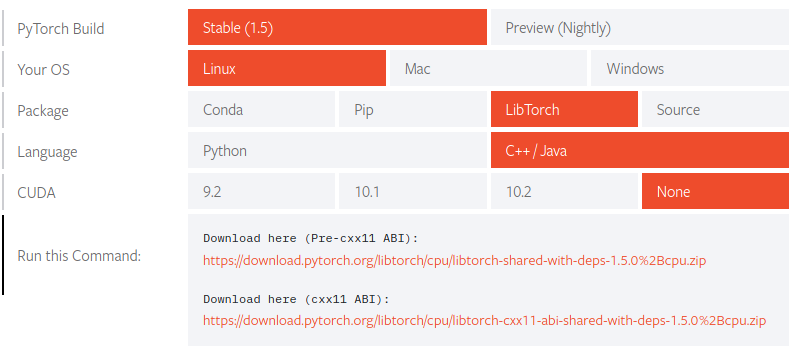
<p>The local installation of LibTorch is very similar to the Docker recipe. First, go to the <a href="https://pytorch.org/">PyTorch website</a> and select the C++ API package as indicated in the picture below. <strong>Important:</strong> use the download link containing <strong>-abi-shared-with-deps-</strong> (cxx11 ABI). Then extract the archive to a location of your choice.</p>

<table>
  <thead>
    <tr>
      <th style="text-align: center"><img src="/assets/img/pytorch_download_selection.png" alt="" /></th>
    </tr>
  </thead>
  <tbody>
    <tr>
      <td style="text-align: center"><em>Selection to download libtorch without GPU support.</em></td>
    </tr>
  </tbody>
</table>

<p>As in the Dockerfile, I recommend to set up an environment variable pointing to the LibTorch installation, e.g., add <code class="language-plaintext highlighter-rouge">export TORCH_LIBRARIES=/path/to/libtorch</code> to your <code class="language-plaintext highlighter-rouge">~/.bashrc</code> file.</p>

<h3 id="setting-up-visual-studio-code">Setting up Visual Studio Code</h3>

<p>Powerful code editors can make your life much easier when learning to use a large library with little documentation. Over the last couple of months, I have started using <a href="https://code.visualstudio.com/">Visual Studio Code</a> (vscode) for more and more of my projects. The main reason for me is the easy setup for a variety of different programming languages and tools (e.g., support for CMake and Docker is available). There are extensions for almost everything, and <strong>they are easy to install and manage</strong>. With very little effort, you can configure linting, code-completion, automatic code-formatting, or quickly jump to the definition of functions and classes. Setting up vscode for your C++/libtorch project requires only a couple of steps.</p>

<h4 id="installing-vscode">Installing vscode</h4>

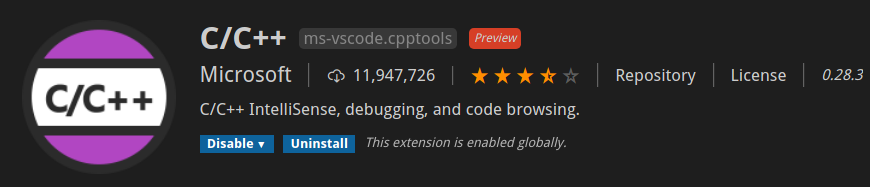
<p>On the <a href="https://code.visualstudio.com/Download">download page</a> of vscode, you find plenty of options to get vscode. There are <code class="language-plaintext highlighter-rouge">.deb</code> and <code class="language-plaintext highlighter-rouge">.rpm</code> packages for the most popular Linux distributions, but also installers for Windows and MacOS. For C++ projects, you also want to install the official C/C++ extension. After staring vscode (simply type <code class="language-plaintext highlighter-rouge">code .</code> in the command line), open the extension manager by pressing <em>Crtl+Shift+X</em>, search for C/C++, and click on install.</p>

<table>
  <thead>
    <tr>
      <th style="text-align: center"><img src="/assets/img/cpp_intellisense.png" alt="" /></th>
    </tr>
  </thead>
  <tbody>
    <tr>
      <td style="text-align: center"><em>C/C++ extension for vscode.</em></td>
    </tr>
  </tbody>
</table>

<h4 id="configuring-intellisense">Configuring Intellisense</h4>

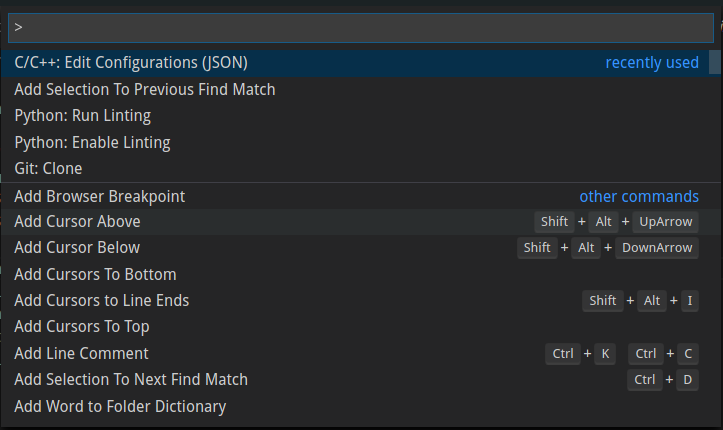
<p>If you open up one of the PyTorch C++ <a href="https://github.com/AndreWeiner/of_pytorch_docker/tree/master/test">examples</a> in the repository with vscode, you will notice that Intellisense (the vscode engine doing all the magic in the background) is not able to find the torch.h header file. To fix this issue, some of the Intellisense settings have to be changed. In vscode, open the command palette by pressing <em>Ctrl+Shift+P</em>, search for C/C++, and select <em>C/C++: Edit Configurations (JSON)</em> as in the image below.</p>

<table>
  <thead>
    <tr>
      <th style="text-align: center"><img src="/assets/img/vscode_edit_setting.png" alt="" /></th>
    </tr>
  </thead>
  <tbody>
    <tr>
      <td style="text-align: center"><em>Opening C/C++ configurations in vscode.</em></td>
    </tr>
  </tbody>
</table>

<p>Assuming that you have defined an environment variable called <code class="language-plaintext highlighter-rouge">TORCH_LIBRARIES</code> as described above, the following settings allow Intellisense to find the LibTorch header files. Tip: you may also want to add the path to the OpenFOAM sources when programming with components from both libraries. If the OpenFOAM environment variables were available in the shell in which you opened vscode, add <code class="language-plaintext highlighter-rouge">"${FOAM_SRC}/**"</code> to the <code class="language-plaintext highlighter-rouge">includePath</code> section of the Intellisense configuration file. Otherwise, it is also possible to add the full path to the OpenFOAM source folder.</p>

<div class="language-js highlighter-rouge"><div class="highlight"><pre class="highlight"><code><span class="p">{</span>
    <span class="dl">"</span><span class="s2">configurations</span><span class="dl">"</span><span class="p">:</span> <span class="p">[</span>
        <span class="p">{</span>
            <span class="dl">"</span><span class="s2">name</span><span class="dl">"</span><span class="p">:</span> <span class="dl">"</span><span class="s2">Linux</span><span class="dl">"</span><span class="p">,</span>
            <span class="dl">"</span><span class="s2">includePath</span><span class="dl">"</span><span class="p">:</span> <span class="p">[</span>
                <span class="dl">"</span><span class="s2">${workspaceFolder}/**</span><span class="dl">"</span><span class="p">,</span>
                <span class="dl">"</span><span class="s2">${TORCH_LIBRARIES}/**</span><span class="dl">"</span><span class="p">,</span>
                <span class="dl">"</span><span class="s2">${FOAM_SRC}/**</span><span class="dl">"</span>
            <span class="p">],</span>
            <span class="dl">"</span><span class="s2">defines</span><span class="dl">"</span><span class="p">:</span> <span class="p">[],</span>
            <span class="dl">"</span><span class="s2">compilerPath</span><span class="dl">"</span><span class="p">:</span> <span class="dl">"</span><span class="s2">/usr/bin/g++</span><span class="dl">"</span><span class="p">,</span>
            <span class="dl">"</span><span class="s2">cStandard</span><span class="dl">"</span><span class="p">:</span> <span class="dl">"</span><span class="s2">c11</span><span class="dl">"</span><span class="p">,</span>
            <span class="dl">"</span><span class="s2">cppStandard</span><span class="dl">"</span><span class="p">:</span> <span class="dl">"</span><span class="s2">c++14</span><span class="dl">"</span><span class="p">,</span>
            <span class="dl">"</span><span class="s2">intelliSenseMode</span><span class="dl">"</span><span class="p">:</span> <span class="dl">"</span><span class="s2">gcc-x64</span><span class="dl">"</span>
        <span class="p">}</span>
    <span class="p">],</span>
    <span class="dl">"</span><span class="s2">version</span><span class="dl">"</span><span class="p">:</span> <span class="mi">4</span>
<span class="p">}</span>
</code></pre></div></div>

<h3 id="compiling-examples-using-wmake-and-cmake">Compiling examples using wmake and CMake</h3>

<p>By default, LibTorch applications are compiled using CMake, and dependencies are defined in <code class="language-plaintext highlighter-rouge">CMakeLists.txt</code> files. In contrast, OpenFOAM applications are typically compiled using <code class="language-plaintext highlighter-rouge">wmake</code>. Therefore, you are confronted with the following dilemma: you can either try to figure out how to compile OpenFOAM apps with CMake or you learn how to build LibTorch programs with <code class="language-plaintext highlighter-rouge">wmake</code>. I decided some time ago for the latter approach and haven’t changed my workflow since then. This <a href="https://github.com/AndreWeiner/of_pytorch_docker">repository</a> currently contains two examples and instructions on how to run them:</p>

<ul>
  <li><code class="language-plaintext highlighter-rouge">tensorCreation</code>: basics of PyTorch tensors and Autograd; compiled using wmake</li>
  <li><code class="language-plaintext highlighter-rouge">simpleMLP</code>: implementation of a simple neural network (multilayer perceptron - MLP); compiled using CMake</li>
</ul>

<p>Instead of checking all the CMake files contained in LibTorch, I found it much easier to simply look at the final compile command created by CMake and then to add PyTorch-related options to the <code class="language-plaintext highlighter-rouge">wmake</code> options file. The simpleMLP example in the <a href="https://github.com/AndreWeiner/of_pytorch_docker">repository</a> mentioned above contains the implementation of a simple neural network in LibTorch and a CMake configuration file that enables <a href="https://stackoverflow.com/questions/2670121/using-cmake-with-gnu-make-how-can-i-see-the-exact-commands">verbose output</a> during the compilation. The output of make should look similar to the content of the code box below.</p>

<div class="language-bash highlighter-rouge"><div class="highlight"><pre class="highlight"><code><span class="c"># step 1: using cmake to create a makefile</span>
cmake ..
<span class="c"># step 2: compiling the application using make</span>
make
<span class="c"># verbose output</span>
...
<span class="o">[</span> 50%] Building CXX object CMakeFiles/simpleMLP.dir/simpleMLP.C.o
/usr/bin/c++  <span class="nt">-DAT_PARALLEL_OPENMP</span><span class="o">=</span>1 <span class="nt">-isystem</span> /opt/libtorch/include <span class="nt">-isystem</span> /opt/libtorch/include/torch/csrc/api/include  <span class="nt">-D_GLIBCXX_USE_CXX11_ABI</span><span class="o">=</span>1 <span class="nt">-Wall</span> <span class="nt">-Wextra</span> <span class="nt">-Wno-unused-parameter</span> <span class="nt">-Wno-missing-field-initializers</span> <span class="nt">-Wno-write-strings</span> <span class="nt">-Wno-unknown-pragmas</span> <span class="nt">-Wno-missing-braces</span> <span class="nt">-fopenmp</span> <span class="nt">-std</span><span class="o">=</span>gnu++14 <span class="nt">-o</span> CMakeFiles/simpleMLP.dir/simpleMLP.C.o <span class="nt">-c</span> /home/andre/pyTorchCmake/simpleMLP.C
<span class="o">[</span>100%] Linking CXX executable simpleMLP
/usr/bin/cmake <span class="nt">-E</span> cmake_link_script CMakeFiles/simpleMLP.dir/link.txt <span class="nt">--verbose</span><span class="o">=</span>1
/usr/bin/c++    <span class="nt">-rdynamic</span> CMakeFiles/simpleMLP.dir/simpleMLP.C.o  <span class="nt">-o</span> pyTorchOnes  <span class="nt">-Wl</span>,-rpath,/opt/libtorch/lib /opt/libtorch/lib/libtorch.so /opt/libtorch/lib/libc10.so <span class="nt">-Wl</span>,--no-as-needed,/opt/libtorch/lib/libtorch_cpu.so <span class="nt">-Wl</span>,--as-needed /opt/libtorch/lib/libc10.so <span class="nt">-lpthread</span> <span class="nt">-Wl</span>,--no-as-needed,/opt/libtorch/lib/libtorch.so <span class="nt">-Wl</span>,--as-needed 
make[2]: Leaving directory <span class="s1">'/home/andre/simpleMLP/build'</span>
<span class="o">[</span>100%] Built target simpleMLP
...
</code></pre></div></div>

<p>Now you can add the paths to header and shared object files to the <code class="language-plaintext highlighter-rouge">wmake</code> options and simplify the paths using the <code class="language-plaintext highlighter-rouge">TORCH_LIBRARIES</code> environment variable. The following box shows the options file of the <a href="https://github.com/AndreWeiner/of_pytorch_docker#tensorcreation">tensorCreation</a> example, compiled with <code class="language-plaintext highlighter-rouge">wmake</code>. Note that the last three lines are optional.</p>

<div class="language-bash highlighter-rouge"><div class="highlight"><pre class="highlight"><code>EXE_INC <span class="o">=</span> <span class="se">\</span>
<span class="nt">-I</span><span class="si">$(</span>TORCH_LIBRARIES<span class="si">)</span>/include <span class="se">\</span>
<span class="nt">-I</span><span class="si">$(</span>TORCH_LIBRARIES<span class="si">)</span>/include/torch/csrc/api/include

EXE_LIBS <span class="o">=</span> <span class="se">\</span>
<span class="nt">-Wl</span>,-rpath,<span class="si">$(</span>TORCH_LIBRARIES<span class="si">)</span>/lib <span class="si">$(</span>TORCH_LIBRARIES<span class="si">)</span>/lib/libtorch.so <span class="si">$(</span>TORCH_LIBRARIES<span class="si">)</span>/lib/libc10.so <span class="se">\</span>
<span class="nt">-Wl</span>,--no-as-needed,<span class="si">$(</span>TORCH_LIBRARIES<span class="si">)</span>/lib/libtorch_cpu.so <span class="se">\</span>
<span class="nt">-Wl</span>,--as-needed <span class="si">$(</span>TORCH_LIBRARIES<span class="si">)</span>/lib/libc10.so <span class="se">\</span>
<span class="nt">-Wl</span>,--no-as-needed,<span class="si">$(</span>TORCH_LIBRARIES<span class="si">)</span>/lib/libtorch.so
</code></pre></div></div>

<h3 id="additional-links-to-resources">Additional links to resources</h3>

<ul>
  <li>PyTorch <a href="https://pytorch.org/docs/stable/torch.html">Python API</a> and <a href="https://pytorch.org/cppdocs/">C++ API</a> documentation</li>
  <li><a href="https://pytorch.org/tutorials/advanced/cpp_autograd.html">Autograd</a> in the PyTorch C++ frontend</li>
  <li>plethora of <a href="https://github.com/prabhuomkar/pytorch-cpp">PyTorch C++ examples</a> by Omkar Prabhu</li>
  <li>creating a <a href="https://github.com/AndreWeiner/of_pytorch_docker">Docker image</a> with OpenFOAM and PyTorch</li>
  <li>examples for <a href="https://github.com/AndreWeiner/machine-learning-applied-to-cfd">ML applied to CFD</a> problems</li>
</ul>

<h3 id="summary">Summary</h3>

<p>Getting started in a new, huge field like ML and DL can be hard for CFD people, but I strongly believe it is worth the trouble. I hope that this article saves you some time and maybe motivates you to give ML+CFD a try in case you’re undecided. Should you have follow-up questions or suggestions for future articles related to this topic, let me know! Finally, I would like to thank <strong>Chiara Pesci</strong> for her early feedback on this blog post and <a href="https://tmaric.gitlab.io/posts/">Tomislav Maric</a> for our ongoing discussions about OpenFOAM and PyTorch, which have significantly influenced and improved the content of this post.</p>

<p>Cheers, Andre</p>]]></content><author><name></name></author><category term="OpenFOAM" /><category term="PyTorch" /><category term="Docker" /><summary type="html"><![CDATA[Why PyTorch Docker image with OpenFOAM and PyTorch Local installation of LibTorch Setting up Visual Studio Code Compiling examples using wmake and CMake Additional links to resources Summary]]></summary></entry><entry><title type="html">A detailed look at the OpenFOAM docker workflow</title><link href="https://ml-cfd.com/openfoam/docker/2020/12/20/openfoam-docker-workflow.html" rel="alternate" type="text/html" title="A detailed look at the OpenFOAM docker workflow" /><published>2020-12-20T11:00:00+00:00</published><updated>2020-12-20T11:00:00+00:00</updated><id>https://ml-cfd.com/openfoam/docker/2020/12/20/openfoam-docker-workflow</id><content type="html" xml:base="https://ml-cfd.com/openfoam/docker/2020/12/20/openfoam-docker-workflow.html"><![CDATA[<p><strong>Update (Mar 5 2022)</strong>: the workflow described in this article has been revised at the end of 2022. Have a look at the <a href="https://develop.openfoam.com/Development/openfoam/-/wikis/precompiled/docker">updated workflow</a>. Nonetheless, if you are new to working with Docker and OpenFOAM, you will still learn the essentials from this article.</p>

<hr />

<p>This article is all about</p>

<ul>
  <li>what the installOpenFOAM script does,</li>
  <li>what the startOpenFOAM script does, and</li>
  <li>ways to ship your OpenFOAM/solvers/utilities using Docker.</li>
</ul>

<p>The quickest way to get a running OpenFOAM installation on any Linux distribution (or even Mac and Windows) is probably via a Docker image. In case you have never heard of Docker, and you are wondering why you should bother to use it, Robin Knowles from <a href="https://www.cfdengine.com/">CFD Engine</a> wrote a fantastic article entitled <a href="https://www.cfdengine.com/blog/how-to-install-openfoam-anywhere-with-docker/">The complete guide to Docker &amp; OpenFOAM</a>, which I really recommend to read before continuing with this post. If you are not in the mood to read another article, here is why you should care about Docker in a nutshell:</p>

<ul>
  <li>Docker allows creating isolated, standardized software images.</li>
  <li>An image contains the software itself and all its dependencies, which is why you can share and run your app (almost) without limit.</li>
  <li>This flexibility makes your app executable even if you do not know the hardware or operating system (OS) it is going to run on. You can run your app in the cloud, or you can share it quickly with a co-worker who uses a different OS, or you can conserve a solver and it will be still runnable in five years from now and it will still give the exact same results.</li>
</ul>

<p>If you followed the <a href="https://openfoam.com/download/install-binary-linux.php">installation instructions</a> provided on the ESI OpenFOAM website, you installed Docker and executed two scripts, namely installOpenFOAM, and startOpenFOAM. Afterward, you were magically presented with a running OpenFOAM installation without having had to worry about any dependencies besides Docker. And there is more: in the isolated container environment, you still have the same username as on the Linux host and use the same credentials to run sudo commands. There is also a fully-fledged version of paraFoam available. You may be wondering why this should be a big deal?! Well, Docker is great for creating standardized, isolated, and minimalistic environments. Isolation means that Docker only uses few core components of the host system’s Linux kernel (Cgroups, Namespaces, etc. - <a href="https://docs.docker.com/engine/security/security/">learn more</a>), but it doesn’t depend on or interact with any other applications, libraries, or configuration files of the host. To work in a Docker container feels a bit like working on a remote server, with the difference being only that this remote server is an isolated fraction of your workstation. Still, with the OpenFOAM-plus workflow, the OpenFOAM container integrates seamlessly into your system, and you can run simulations just as well as with the native installation. But how and when does the mapping of username, password, or permissions happen? And how does it become possible to access your simulation data if created in an isolated environment? It all happens with the execution of two short scripts. Understanding these scripts will enable you to modify them according to your needs. If you are curious to learn more, read on.</p>

<h3 id="installopenfoam"><em>installOpenFOAM</em></h3>

<p>Let’s start with the first script that was executed: <code class="language-plaintext highlighter-rouge">installOpenFOAM</code>. The name suggests that this script installs OpenFOAM on your computer, but as you will learn in the next paragraphs, there is no classical installation process when working with images/containers. A more suitable name might be <code class="language-plaintext highlighter-rouge">initOpenFOAMContainer</code> or even better <code class="language-plaintext highlighter-rouge">runOpenFOAMContainer</code>, but I guess such naming could confuse users new to Docker and containerization. The script may be divided into two logical parts: first, some useful environment variables are defined, and then the Docker run command is executed.</p>

<div class="language-bash highlighter-rouge"><div class="highlight"><pre class="highlight"><code><span class="nv">username</span><span class="o">=</span><span class="s2">"</span><span class="nv">$USER</span><span class="s2">"</span>
<span class="nv">user</span><span class="o">=</span><span class="s2">"</span><span class="si">$(</span><span class="nb">id</span> <span class="nt">-u</span><span class="si">)</span><span class="s2">"</span>
<span class="nv">home</span><span class="o">=</span><span class="s2">"</span><span class="k">${</span><span class="nv">1</span><span class="k">:-</span><span class="nv">$HOME</span><span class="k">}</span><span class="s2">"</span>
<span class="nv">imageName</span><span class="o">=</span><span class="s2">"openfoamplus/of_v1812_centos73"</span>
<span class="nv">containerName</span><span class="o">=</span><span class="s2">"of_v1812"</span>   
<span class="nv">displayVar</span><span class="o">=</span><span class="s2">"</span><span class="nv">$DISPLAY</span><span class="s2">"</span>
</code></pre></div></div>

<p>Line 1 and 2 define variables for username and user id. The username will be your login name as in the command line prompt, e. g. <strong>username</strong><code class="language-plaintext highlighter-rouge">@workstation:~$</code>. The id is an integer value associated with the user, most likely 1001. The next line is of great importance because it defines where (in which path) you will interact with the OpenFOAM container. The syntax of the right-hand-side works as follows: <code class="language-plaintext highlighter-rouge">${defined_path:-default_path}</code>. The default path is simply your home directory <code class="language-plaintext highlighter-rouge">HOME</code>. The default path is used if no other valid path was given as the first command-line argument to the <code class="language-plaintext highlighter-rouge">installOpenFOAM</code> script. To change the default path, one would execute <code class="language-plaintext highlighter-rouge">./installOpenFOAM /absolute/alternative/path</code>. The imageName is the name of the OpenFOAM image hosted on <a href="https://hub.docker.com/r/openfoamplus/of_v1812_centos73">Dockerhub</a>. The part of the image name before the front slash corresponds to the Dockerhub user, here <strong>openfoamplus</strong>. The second part gives more information about the image. For example, the present image is built on CentOS 7.3 and contains version 1812 of OpenFOAM-plus. Last but not least, there is the <code class="language-plaintext highlighter-rouge">DISPLAY</code> variable, which tells an application with a graphical user interface (GUI) where to display the interface. On my laptop, the value of <code class="language-plaintext highlighter-rouge">DISPLAY</code> is simply <code class="language-plaintext highlighter-rouge">:0</code> (zero), which is my primary (and only) screen. Remember, Docker containers are a bit like remote servers, so you have to provide some additional information to use GUI applications. With all the information gathered up to this point, we are ready to move on to the actual container creation.</p>

<p>The syntax to create and execute a container is <code class="language-plaintext highlighter-rouge">docker run [options] IMAGE [command] [args]</code> (<a href="https://docs.docker.com/engine/reference/run/">read more</a>). The image name is stored in the variable <code class="language-plaintext highlighter-rouge">imageName</code> and appears only in the twelfth line of the command in the code box below. Every item between docker run and ${imageName} starting with <code class="language-plaintext highlighter-rouge">-</code> or <code class="language-plaintext highlighter-rouge">--</code> is an option. The command to be executed after the container was created is /bin/bash, which is why you are presented with a command-line prompt when starting the OpenFOAM container. Bash is run with the <code class="language-plaintext highlighter-rouge">-rcfile</code> argument to execute additional commands from the file specified thereafter (line 13). The content of <code class="language-plaintext highlighter-rouge">setImage.sh</code> is shown in the last code box of this article for completeness.</p>

<figure class="highlight"><pre><code class="language-bash" data-lang="bash"><table class="rouge-table"><tbody><tr><td class="gutter gl"><pre class="lineno">1
2
3
4
5
6
7
8
9
10
11
12
13
</pre></td><td class="code"><pre>docker run  <span class="nt">-it</span> <span class="nt">-d</span> <span class="nt">--name</span> <span class="k">${</span><span class="nv">containerName</span><span class="k">}</span> <span class="nt">--user</span><span class="o">=</span><span class="k">${</span><span class="nv">user</span><span class="k">}</span>   <span class="se">\</span>
    <span class="nt">-e</span> <span class="nv">USER</span><span class="o">=</span><span class="k">${</span><span class="nv">username</span><span class="k">}</span>                                     <span class="se">\</span>
    <span class="nt">-e</span> <span class="nv">QT_X11_NO_MITSHM</span><span class="o">=</span>1                                   <span class="se">\</span>
    <span class="nt">-e</span> <span class="nv">DISPLAY</span><span class="o">=</span><span class="k">${</span><span class="nv">displayVar</span><span class="k">}</span>                                <span class="se">\</span>
    <span class="nt">-e</span> <span class="nv">QT_XKB_CONFIG_ROOT</span><span class="o">=</span>/usr/share/X11/xkb                <span class="se">\</span>
    <span class="nt">--workdir</span><span class="o">=</span><span class="s2">"</span><span class="k">${</span><span class="nv">home</span><span class="k">}</span><span class="s2">"</span>                                     <span class="se">\</span>
    <span class="nt">--volume</span><span class="o">=</span><span class="s2">"</span><span class="k">${</span><span class="nv">home</span><span class="k">}</span><span class="s2">:</span><span class="k">${</span><span class="nv">home</span><span class="k">}</span><span class="s2">"</span>                              <span class="se">\</span>
    <span class="nt">--volume</span><span class="o">=</span><span class="s2">"/etc/group:/etc/group:ro"</span>                     <span class="se">\</span>
    <span class="nt">--volume</span><span class="o">=</span><span class="s2">"/etc/passwd:/etc/passwd:ro"</span>                   <span class="se">\</span>
    <span class="nt">--volume</span><span class="o">=</span><span class="s2">"/etc/shadow:/etc/shadow:ro"</span>                   <span class="se">\</span>
    <span class="nt">--volume</span><span class="o">=</span><span class="s2">"/etc/sudoers.d:/etc/sudoers.d:ro"</span>             <span class="se">\</span>
     <span class="nt">-v</span><span class="o">=</span>/tmp/.X11-unix:/tmp/.X11-unix <span class="k">${</span><span class="nv">imageName</span><span class="k">}</span>          <span class="se">\</span>
     /bin/bash <span class="nt">--rcfile</span> /opt/OpenFOAM/setImage_v1812.sh
</pre></td></tr></tbody></table></code></pre></figure>

<p>Let’s take a closer look at all the container options displayed above because this is where the magic happens.</p>

<table>
  <thead>
    <tr>
      <th style="text-align: center">option</th>
      <th style="text-align: left">description</th>
    </tr>
  </thead>
  <tbody>
    <tr>
      <td style="text-align: center"><code class="language-plaintext highlighter-rouge">-i</code> or <code class="language-plaintext highlighter-rouge">--interactive</code></td>
      <td style="text-align: left">keeps the standard input open even if you detach from the container, e.g., if you close the terminal</td>
    </tr>
    <tr>
      <td style="text-align: center"><code class="language-plaintext highlighter-rouge">-t</code> or <code class="language-plaintext highlighter-rouge">--tty</code></td>
      <td style="text-align: left">allocates a virtual console to interact with the container</td>
    </tr>
    <tr>
      <td style="text-align: center"><code class="language-plaintext highlighter-rouge">-d</code> or <code class="language-plaintext highlighter-rouge">--detach</code></td>
      <td style="text-align: left">allows running a container in the background; the container will not stop after you exit from the container</td>
    </tr>
    <tr>
      <td style="text-align: center"><code class="language-plaintext highlighter-rouge">--name</code></td>
      <td style="text-align: left">sets a container name</td>
    </tr>
    <tr>
      <td style="text-align: center"><code class="language-plaintext highlighter-rouge">-u</code> or <code class="language-plaintext highlighter-rouge">--user</code></td>
      <td style="text-align: left">creates an additional user within the container; the default user is <code class="language-plaintext highlighter-rouge">root</code></td>
    </tr>
    <tr>
      <td style="text-align: center"><code class="language-plaintext highlighter-rouge">-e</code> or <code class="language-plaintext highlighter-rouge">--env</code></td>
      <td style="text-align: left">sets environment variables in the container</td>
    </tr>
    <tr>
      <td style="text-align: center"><code class="language-plaintext highlighter-rouge">-w</code> or <code class="language-plaintext highlighter-rouge">--workdir</code></td>
      <td style="text-align: left">sets the working directory inside the container, e.g., the default directory after attaching (logging in) to the container</td>
    </tr>
    <tr>
      <td style="text-align: center"><code class="language-plaintext highlighter-rouge">-v</code> or <code class="language-plaintext highlighter-rouge">--volume</code></td>
      <td style="text-align: left">binds a source from the host to the container; such a source might be a file, a directory, or a Docker volume</td>
    </tr>
  </tbody>
</table>

<p>The first interesting option is the <code class="language-plaintext highlighter-rouge">--user</code> flag, which is used to create a new user inside the container with the same id as the user creating the container. Additionally, in line 2, the <code class="language-plaintext highlighter-rouge">-e</code> option sets the corresponding username. More environment variables are set in lines 3-5 to enable a GUI (mainly ParaView) to be forwarded to the host system. In line 6 the working directory is set to <code class="language-plaintext highlighter-rouge">home</code>. The home directory will be the same as on the host system since we first mapped the user to the container (unless a different directory was specified). The syntax to <a href="https://docs.docker.com/storage/bind-mounts/">bind volumes</a> to the container is <code class="language-plaintext highlighter-rouge">--volume path_on_host:path_in_container:options</code>. The last argument is optional, for example, to make a file or directory read-only with the <code class="language-plaintext highlighter-rouge">ro</code> option. The first and most important directory-mount happens in line 7, where the home directory of the container is bound to the host’s home. If you use the <code class="language-plaintext highlighter-rouge">FOAM_RUN</code> directory to run test cases, then all the solver/utility output will be accessible from the home directory of the host. Likewise, data can be made accessible to the container by moving it to the home directory. After mounting home, there are three more single files and two folders that are bound to the container:</p>

<ul>
  <li>the <code class="language-plaintext highlighter-rouge">/etc/group</code> file contains a list of groups and their members</li>
  <li><code class="language-plaintext highlighter-rouge">/etc/passwd</code> contains further user attributes like id or password</li>
  <li><code class="language-plaintext highlighter-rouge">/etc/shadow</code> is a file with the same content as <code class="language-plaintext highlighter-rouge">/etc/passwd</code> but only root has read access (this is some safety feature of modern Linux systems)</li>
  <li>the <code class="language-plaintext highlighter-rouge">sudoers.d</code> folder sometimes contains sudoers (users with root privileges) information that has to stay unchanged whenever the system is upgraded</li>
  <li>the <code class="language-plaintext highlighter-rouge">.X11-unix</code> folder contains an endpoint (a Unix socket) for the Xserver to communicate with clients (applications like ParaView)</li>
</ul>

<h3 id="startopenfoam"><em>startOpenFOAM</em></h3>

<p>The <code class="language-plaintext highlighter-rouge">installOpenFOAM</code> will be only run once to create the OpenFOAM container. <code class="language-plaintext highlighter-rouge">startOpenFOAM</code> is the script to execute whenever you need to login to the container. The first line in the scripts grants the container access to the Xserver of the host (to draw GUIs). After that follow two common Docker commands. <code class="language-plaintext highlighter-rouge">docker start CONTAINER_NAME</code> will start the container in case it was stopped, for example, after rebooting the host system. It is important to note, however, that the container must exist. Finally, an interactive bash shell is executed in the running container using the Docker <code class="language-plaintext highlighter-rouge">exec</code> command: <code class="language-plaintext highlighter-rouge">docker exec [options] CONTAINER_NAME command [args]</code>.</p>

<div class="language-bash highlighter-rouge"><div class="highlight"><pre class="highlight"><code>xhost +local:of_v1812
docker start of_v1812
docker <span class="nb">exec</span> <span class="nt">-it</span> of_v1812 /bin/bash <span class="nt">-rcfile</span> /opt/OpenFOAM/setImage_v1812.sh
</code></pre></div></div>

<p>The content of the <code class="language-plaintext highlighter-rouge">rcfile</code> loaded when you execute bash in the container is included in the code box below. First, all the OpenFOAM-specific variables and commands are sourced (made available). After that, some third-party binaries and libraries are added to <code class="language-plaintext highlighter-rouge">PATH</code> and <code class="language-plaintext highlighter-rouge">LD_LIBRARY_PATH</code> to have them system-wide available for execution or for compiling new applications (in the container). The last exported variable is again a dependency of <code class="language-plaintext highlighter-rouge">paraFoam</code>, which is built with <a href="https://en.wikipedia.org/wiki/Qt_(software)">Qt</a>.</p>

<div class="language-bash highlighter-rouge"><div class="highlight"><pre class="highlight"><code><span class="nb">source</span> /opt/OpenFOAM/OpenFOAM-v1812/etc/bashrc
<span class="nb">export </span><span class="nv">LD_LIBRARY_PATH</span><span class="o">=</span><span class="nv">$WM_THIRD_PARTY_DIR</span>/platforms/linux64Gcc/ParaView-5.6.0/lib/mesa:<span class="nv">$LD_LIBRARY_PATH</span>
<span class="nb">export </span><span class="nv">LD_LIBRARY_PATH</span><span class="o">=</span><span class="nv">$WM_THIRD_PARTY_DIR</span>/platforms/linux64Gcc/ParaView-5.6.0/lib/paraview-5.6/plugins:<span class="nv">$LD_LIBRARY_PATH</span>
<span class="nb">export </span><span class="nv">LD_LIBRARY_PATH</span><span class="o">=</span><span class="nv">$WM_THIRD_PARTY_DIR</span>/platforms/linux64Gcc/qt-5.9.0/lib:<span class="nv">$LD_LIBRARY_PATH</span>
<span class="nb">export </span><span class="nv">LD_LIBRARY_PATH</span><span class="o">=</span><span class="nv">$WM_THIRD_PARTY_DIR</span>/platforms/linux64/zlib-1.2.11/lib:<span class="nv">$LD_LIBRARY_PATH</span>
<span class="nb">export </span><span class="nv">PATH</span><span class="o">=</span><span class="nv">$WM_THIRD_PARTY_DIR</span>/platforms/linux64Gcc/qt-5.9.0/bin:<span class="nv">$PATH</span>
<span class="nb">export </span><span class="nv">QT_PLUGIN_PATH</span><span class="o">=</span><span class="nv">$WM_THIRD_PARTY_DIR</span>/platforms/linux64Gcc/qt-5.9.0/plugins
</code></pre></div></div>

<h3 id="shipping-openfoam-using-docker">Shipping OpenFOAM using Docker</h3>

<p>If you have your own modified version of OpenFOAM or some solver/utility you have written, here are approaches to preserve and ship your work using Docker:</p>

<ul>
  <li>Large modifications to OpenFOAM itself require to build a new OpenFOAM Docker image. For that you can base your image on a Linux distribution close to your development environment, e.g. Ubuntu or CentOS, you install all dependencies needed to compile OpenFOAM from scratch, you copy your modified version to the image, and compile it.</li>
  <li>A new solver/utility can be built on top of the official OpenFOAM Docker image. You will copy the new sources to the image, compile them, and voilà.</li>
  <li>If you only need a runnable binary of your app, it is possible to build an image from scratch and to copy only the binary and the dynamically-linked libraries to the image. That’s the most minimalistic way to ship an app.</li>
</ul>

<p>I will describe each of these approaches in more detail in follow-up articles.</p>

<p>Cheers, Andre</p>]]></content><author><name></name></author><category term="OpenFOAM" /><category term="Docker" /><summary type="html"><![CDATA[Update (Mar 5 2022): the workflow described in this article has been revised at the end of 2022. Have a look at the updated workflow. Nonetheless, if you are new to working with Docker and OpenFOAM, you will still learn the essentials from this article.]]></summary></entry><entry><title type="html">3 ways to run tutorials in OpenFOAM</title><link href="https://ml-cfd.com/openfoam/basic/2020/06/12/3-ways-to-run-tutorials-in-OpenFOAM.html" rel="alternate" type="text/html" title="3 ways to run tutorials in OpenFOAM" /><published>2020-06-12T11:00:00+00:00</published><updated>2020-06-12T11:00:00+00:00</updated><id>https://ml-cfd.com/openfoam/basic/2020/06/12/3-ways-to-run-tutorials-in-OpenFOAM</id><content type="html" xml:base="https://ml-cfd.com/openfoam/basic/2020/06/12/3-ways-to-run-tutorials-in-OpenFOAM.html"><![CDATA[<h3 id="tutorials---the-starting-point-of-almost-every-simulation">Tutorials - The starting point of almost every simulation</h3>

<p>Tutorials are an interactive way of transferring knowledge. They are a kind of recipe that provides you with the necessary steps to complete a particular task. The maintainers of OpenFOAM deliver an extensive collection of tutorials together with the library. For OpenFOAM users, the supplied case setups are the most useful information provided for free. Reading this post to the end will enable you to run all these tutorials, avoiding some pitfalls.</p>

<p>Tutorials are essential because to start your project in most cases you will:</p>

<ol>
  <li>Select a solver implementing all necessary physics</li>
  <li>Check the available tutorials for the solver</li>
  <li>Copy, rename, and modify the most similar tutorial</li>
  <li>Test and run your simulation</li>
</ol>

<p>The tutorial collection contains a variety of different case setups. In the following, you will learn three different ways to run OpenFOAM tutorials. To get started, open a terminal window and copy the tutorial collection into your run directory.</p>

<div class="language-bash highlighter-rouge"><div class="highlight"><pre class="highlight"><code><span class="nb">cp</span> <span class="nt">-r</span> <span class="nv">$FOAM_TUTORIALS</span> <span class="nv">$FOAM_RUN</span>
</code></pre></div></div>

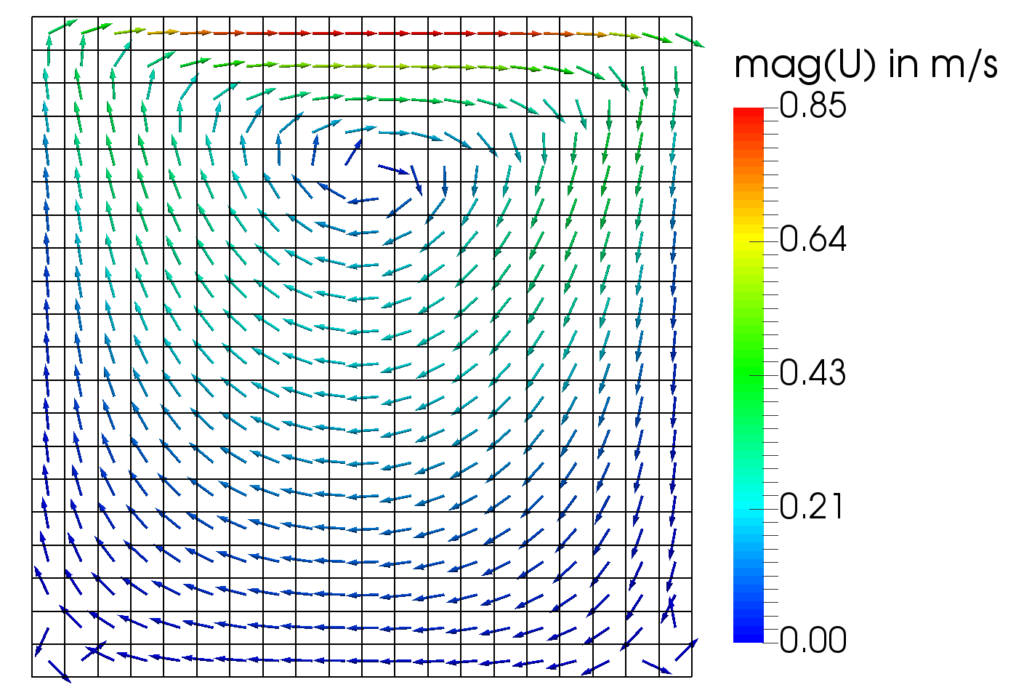
<h3 id="1-simple-blockmeshmysolverfoam-tutorials">1. Simple <em>blockMesh/mySolverFoam</em> tutorials</h3>

<p>The <a href="https://www.cfd-online.com/Wiki/Lid-driven_cavity_problem">lid-driven cavity</a> flow is a common test case for validation. It is also one of the cases thoroughly explained in the <a href="https://openfoam.com/documentation/tutorial-guide/tutorialse2.php#x6-60002.1">OpenFOAM tutorial guide</a> (section 2.1). The way how you create and run simulations in OpenFOAM may seem a bit strange to users who come from a Microsoft-Windows environment or who are used to have a <a href="https://en.wikipedia.org/wiki/Graphical_user_interface">GUI</a>. Instead, solvers, utilities, or scripts in OpenFOAM require a certain directory structure containing control files. Navigate to the cavity folder and type <code class="language-plaintext highlighter-rouge">ls -R</code> or <code class="language-plaintext highlighter-rouge">tree</code> to get an overview.</p>

<div class="language-bash highlighter-rouge"><div class="highlight"><pre class="highlight"><code><span class="nb">cd</span> <span class="nv">$FOAM_RUN</span>/tutorials/incompressible/icoFoam/cavity/
tree
<span class="nb">.</span>
├── 0
│   ├── p
│   └── U
├── constant
│   └── transportProperties
└── system
    ├── blockMeshDict
    ├── controlDict
    ├── fvSchemes
    └── fvSolution
</code></pre></div></div>

<p>All tutorials have a <strong>system</strong> (control files for solvers and utilities), a <strong>constant</strong> (mesh, material properties), and a <strong>0</strong> (zero; technically, the initial time folder could have any value/name but <em>0</em> is the most common scenario) directory (initial values, boundary conditions). If no further execution scripts are provided, you will always have to run <code class="language-plaintext highlighter-rouge">blockMesh</code>, for the mesh creation, and afterward your solver of choice, in our case <code class="language-plaintext highlighter-rouge">icoFoam</code>. In rare cases, there are one or two more dictionaries for preprocessing in the system folder (pre - they are executed before the solver). A possible scenario is an additional <strong>setFieldsDict</strong> to set initial field values. The corresponding utility to run after <code class="language-plaintext highlighter-rouge">blockMesh</code> would be <code class="language-plaintext highlighter-rouge">setFields</code>. The applications will give some output which should be saved in log files for later use (and to avoid that the terminal window is overflowing with solver output). <code class="language-plaintext highlighter-rouge">&amp;&gt;</code> redirects the standard output and error messages of, for example, <em>blockMesh</em> to the file <em>log.blockMesh</em>. Now it’s time to run our first tutorial:</p>

<div class="language-bash highlighter-rouge"><div class="highlight"><pre class="highlight"><code>blockMesh &amp;&gt; log.blockMesh
<span class="c"># ... maybe some more preprocessing utilities</span>
icoFoam &amp;&gt; log.icoFoam
</code></pre></div></div>

<table>
  <thead>
    <tr>
      <th style="text-align: center"><img src="/assets/img/cavity_crop-1024x698.png" alt="" /></th>
    </tr>
  </thead>
  <tbody>
    <tr>
      <td style="text-align: center"><em>Vector plot of cell-centered velocity colored by its magnitude.</em></td>
    </tr>
  </tbody>
</table>

<h3 id="2-tutorials-with-allrunallclean-scripts">2. Tutorials with <em>Allrun/Allclean</em> scripts</h3>

<p>The <code class="language-plaintext highlighter-rouge">reactingParcelFilmFoam</code> solver is, as one can guess from the name, a fairly complex application involving many physical models. Pre- and post-processing tasks for such simulations are correspondingly extensive. At this point, running every single application with its options would be too time (and nerve) consuming. Luckily, automating processes comes naturally within a Linux environment via <strong>Shell</strong> scripts. Basically, all necessary commands are written into a file which is then executed. In the tutorial collection, these scripts are usually called <code class="language-plaintext highlighter-rouge">Allrun</code>. For convenience, different scripts can be created for subtasks, e.q. meshing or parallel execution. After the setup is complete, you may want to run a variety of simulations with different parameters. Here it comes in handy to have an <code class="language-plaintext highlighter-rouge">Allclean</code> script, which resets the case to its initial state. All of this you can find in the <strong>hotBoxes</strong> tutorial.</p>

<div class="language-bash highlighter-rouge"><div class="highlight"><pre class="highlight"><code><span class="nb">cd</span> <span class="nv">$FOAM_RUN</span>/tutorials/lagrangian/reactingParcelFilmFoam/hotBoxes
tree <span class="nt">-L</span> 1
<span class="nb">.</span>
├── 0.org
├── Allclean
├── Allrun
├── Allrun-parallel
├── Allrun.pre
├── constant
...
└── system
</code></pre></div></div>

<p>Running the tutorial in serial takes about 24h. So it’s wise to run it overnight or/and to use the <code class="language-plaintext highlighter-rouge">Allrun-parallel</code> script, which runs the solver with four processes in parallel (about 9h to complete on my office laptop).</p>

<div class="language-bash highlighter-rouge"><div class="highlight"><pre class="highlight"><code>./Allrun
</code></pre></div></div>

<table>
  <thead>
    <tr>
      <th style="text-align: center"><img src="/assets/img/boxes_post_crop-1024x915.png" alt="" /></th>
    </tr>
  </thead>
  <tbody>
    <tr>
      <td style="text-align: center"><em>The surface color indicates the thickness of the cooling film. The Lagrangian particles’ diameters scale with the mass they carry.</em></td>
    </tr>
  </tbody>
</table>

<h3 id="3-tutorials-that-require-system-operations">3. Tutorials that require system operations</h3>

<p>The last type of tutorials I want to introduce here need system operations. <em>System operations</em> basically means that an application (e.g., a solver) compiles and (hopefully) runs user-supplied C++ source code at runtime. Examples are the <a href="http://openfoam.org/release/2-0-0/run-time-control-code-compilation/">#codeStream</a> directive or the <strong>codedFixedValue</strong> boundary condition (same link as before). Since the <a href="http://openfoam.org/release/2-3-1/">OpenFOAM 2.3.1 release</a>, system calls are allowed by default. If you run an older version or you want to check your configuration, open the system-wide <strong>controlDict</strong> and set the <strong>allowSystemOperations</strong> switch to 1.</p>

<div class="language-bash highlighter-rouge"><div class="highlight"><pre class="highlight"><code><span class="c"># for a system-wide installation root privileges are required</span>
<span class="c"># e.g on Ubuntu run</span>
<span class="nb">sudo </span>gedit <span class="nv">$FOAM_ETC</span>/controlDict
</code></pre></div></div>

<div class="language-cpp highlighter-rouge"><div class="highlight"><pre class="highlight"><code><span class="c1">// and set the allowSystemOperations switch to 1</span>
<span class="n">InfoSwitches</span>
<span class="p">{</span>
<span class="p">...</span>
    <span class="c1">// Allow case-supplied C++ code (#codeStream, codedFixedValue)</span>
    <span class="n">allowSystemOperations</span>   <span class="mi">1</span><span class="p">;</span>
<span class="p">}</span>
</code></pre></div></div>

<p>Now we are ready to simulate the potential flow around a cylinder. This case is very charming because it allows us to validate our numerical results with an <a href="https://en.wikipedia.org/wiki/Potential_flow_around_a_circular_cylinder">analytical solution</a>. Within the case’s <strong>controlDict</strong> a coded function object is supplied which later on calculates the numerical error as defined in the picture below. So let’s run the simulation!</p>

<div class="language-plaintext highlighter-rouge"><div class="highlight"><pre class="highlight"><code>cd $FOAM_RUN/tutorials/basic/potentialFoam/cylinder
blockMesh &amp;&gt;log.blockMesh
potentialFoam &amp;&gt;log.potentialFoam
</code></pre></div></div>

<p>Here is a task for <strong>you</strong>:</p>

<ol>
  <li>Take a close look at the streamlines in the picture below. First, check the alignment between mesh and streamlines. Can you spot under which conditions the highest deviations occur?</li>
  <li>Open the <strong>fvSolution</strong> file located in the system directory, set different values for the <strong>nNonOrthogonalCorrectors</strong> (0, 1, 2, …), and re-run the simulation. How does the error behave?</li>
</ol>

<table>
  <thead>
    <tr>
      <th style="text-align: center"><img src="/assets/img/cylinder_post-1024x576.png" alt="" /></th>
    </tr>
  </thead>
  <tbody>
    <tr>
      <td style="text-align: center"><em>The color of the streamlines indicates the relative difference between numerical and analytical solution.</em></td>
    </tr>
  </tbody>
</table>

<p>That’s it for this tutorial! With the above information, you are prepared to explore all the tutorials coming with OpenFOAM.</p>

<p>Cheers, Andre</p>]]></content><author><name></name></author><category term="OpenFOAM" /><category term="basic" /><summary type="html"><![CDATA[Tutorials - The starting point of almost every simulation]]></summary></entry></feed>